
How to Make a Sheru Bhai Video from Your Selfie: 4 Actions
Learn how to make a Sheru Bhai video from a selfie, compare four templates and prepare a six-second vertical clip for WhatsApp Status or Reels.

To make a Sheru Bhai video from your photo, choose a selfie of a consenting adult, select one of four prepared actions and use a paid clip allowance. The result is a short AI-generated scene with Sheru Bhai, an original fictional white-lion character, rather than footage of a real event.
The video tool on aisheru.com is separate from the still-photo generator. You do not need to buy or generate a Sheru photo first. The video page is public; start by signing in to check whether generation is available for your account. Purchased clips and existing history remain available.
The short answer: one clear selfie + one prepared action -> one roughly 6-second vertical AI Sheru Bhai video. Choose an action before spending a clip, then review the download in the destination app.
Know what the finished video includes
The output is one vertical 9:16 MP4, about 6 seconds long, at 768P with generated audio. Six seconds describes the finished clip, not the time it takes to generate. Processing time can vary; follow the task status rather than expecting an instant download.
Each template focuses on one main action in a continuous shot. It is not a multi-scene film, a long dance routine or a custom script. The prepared recipes request movement sounds and subtle cinematic instrumental music, without speech or lyrics. Review the actual sound as well as the picture before publishing.
Videos are generated by MiniMax H3 through YIR. AI-generated entertainment with a fictional character; results may vary.
Step 1: prepare and upload your selfie
Use a JPG, PNG or WebP up to 10 MB. Choose a clear photo where the adult's face is visible and well lit. A front-facing or nearly front-facing view gives the model more readable facial information than a distant face or a profile hidden in shadow.
Avoid heavy filters, sunglasses, masks and objects covering the face. Prefer one clearly identifiable adult over a group photo, and check that the source is sharp before uploading. These choices can help, but the model may still alter facial details, clothing or proportions.
You must confirm that the photo is of you or another authorized adult before uploading and generating. Photos of minors are not allowed. You can upload a selfie or select one already saved in your account; you do not need to create an intermediate still image.
Step 2: pick the action that matches your idea
The four templates tell different stories. Choose by the movement you want, not just the name. Both the action and setting are prepared by the site, so this workflow does not require a separate prompt. If you want to edit in Gemini or ChatGPT instead, use our copy-paste Sheru Bhai photo and video prompt guide. Our paid preset tools are separate from these public tutorial prompts.
Boss Entry
Walk slowly toward the camera beside Sheru Bhai at a luxurious hotel entrance. The recipe uses confident, relaxed expressions and a slow camera push-in. Choose this when you want the person and fictional lion to share an arrival moment, rather than a transformation or a business gesture.
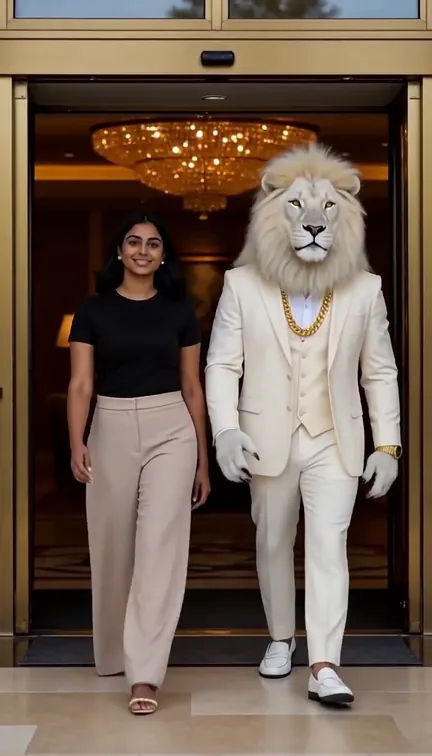
AI-generated example video poster: Priya is an AI-generated adult sample person; Sheru Bhai is an original fictional character. Made with MiniMax H3 through YIR. Results may vary, not reproduce this example exactly.
Money Rain
Toss a single handful of fictional banknotes upward during a festive luxury celebration. The notes drift down while Sheru Bhai laughs warmly, with the camera held in place. It is an imagined celebration using fictional money, not a claim about real earnings or wealth.
Deal Done
Finish a handshake with Sheru Bhai in a luxurious private office. The lion then lifts his head for a triumphant, non-threatening roar, with a subtle camera shake on that beat. The business moment is fictional; do not present the clip as proof of a real agreement or endorsement.
Sheru Transform
Use a continuous magical transition to change the adult person's face into the fictional white-lion boss face in a cinematic luxury portrait setting. The recipe aims to preserve the body, outfit and location while the face changes. Choose this for a supernatural transformation, not an ordinary side-by-side walk.
Step 3: check access, sign in and choose a pack
Open the Sheru video page and sign in to check video access. A verified email is required to generate. If the page says access is unavailable, signing in or buying a photo pack does not mean the video tool has been unlocked.
When video purchases are available, Video Starter costs $2.99 for 2 clips and Video Popular costs $6.99 for 6 clips. The Photo + video pack costs $7.99 and includes 12 photos and 4 clips. These are one-time purchases, not a subscription; unused allowances never expire. Check the current page before purchasing.
A video uses one clip, not a photo allowance. Keeping those balances separate matters: having photos remaining does not by itself cover a video generation.
Step 4: generate once and follow its status
Check the selected selfie and template, confirm consent and start generation. Avoid repeatedly submitting while an attempt is unresolved. A queued or processing video is not the same as a failed one.
An explicit failure or safety rejection returns one clip automatically. An uncertain submission keeps its clip reserved while it is checked and is not automatically submitted again. Follow the displayed status before deciding whether another attempt is needed; uncertainty is not a reason to assume the original request never reached processing.
Once a result is ready, play the whole clip. Check the face, hands, body proportions, lion, background and audio. Visual mistakes in a completed video are different from a task that failed. Neither a suitable selfie nor a particular template guarantees an exact likeness or flawless movement.
Step 5: prepare the 9:16 MP4 for Status or Reels
Download the MP4 from your signed-in account. A vertical 9:16 frame is suited to WhatsApp Status and Reels, but preview it in the destination app before posting. Interface controls, captions and app-specific crops may cover details near the edges.
Watch the upload preview with sound enabled. If you add text, keep faces and the main action unobstructed. Share the downloaded file rather than a private account download link. Your collection and downloads require sign-in; sharing the file makes that copy available to its recipients.
Keep a visible AI-generated caption or label. The site player shows an AI-generated label, and MP4 files include AI metadata, but the downloaded video currently has no visible burned-in label. Metadata is not a substitute for a disclosure viewers can read. For example, describe it as an AI-generated fictional Sheru Bhai scene.
Before sharing another adult's result, let them review it. Keep the fictional context clear, whether the clip shows an entrance, a celebration, a handshake or a transformation.
Ready to check availability and choose an action? Open the Sheru video tool.
Video or photo: which Sheru Bhai tool fits?
The Sheru Bhai photo generator creates one still image from a selfie and a scene. This video workflow creates one prepared action with motion and audio, and uses a separate clip allowance. Neither requires the other, so compare the finished format before buying. Read the selfie photo guide if you want a still result, or open video generation to check access.
Related Sheru guide
Need help choosing or preparing the input rather than the action? The Sheru Bhai photo guide explains adult consent, supported files, eight scenes and common fixes. Return to the four video demos when you want to choose an action.
Browse the Sheru Bhai still-photo examples to save and share existing AI-generated examples before choosing your own scene.