How to Make a Sheru Bhai Photo with Your Selfie: 4 Steps
Learn how to make a Sheru Bhai photo: choose a clear selfie, compare eight scenes, select a frame and review your AI-generated result.
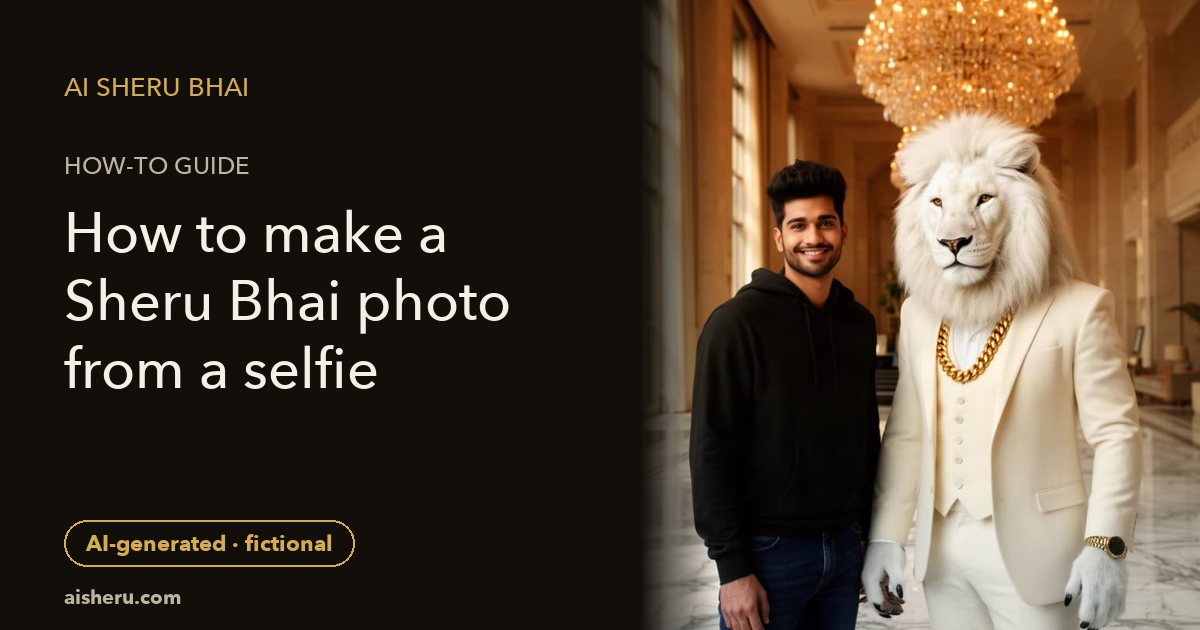
Wondering how to make a Sheru Bhai photo with your own face? Start with one clear selfie, choose a prepared scene and select a frame. The photo tool on aisheru.com creates a still image; you do not need to write a prompt or assemble the scene in an editor. If you want to edit in Gemini or ChatGPT instead, use our copy-paste Sheru Bhai photo and video prompt guide. Our paid preset tools are separate from these public tutorial prompts.
The short answer: one clear selfie + one of eight prepared scenes -> one private still image from a paid photo pack. Choose a frame before generating and review the result before sharing.
Sheru Bhai is an original fictional, supernatural white lion in an ivory suit and gold chain. Some scenes put you beside him, while others transform you into a fictional lion character. Neither type is a photograph of a real meeting or event.
Step 1: choose a photo that gives the model useful detail
Use a photo of yourself or another consenting adult. Confirm that you are an adult and have permission to use the person's image before uploading.
- Choose a JPG, PNG or WebP file up to 10 MB.
- Keep one adult clearly identifiable, rather than using a crowded group shot.
- Show the whole face, preferably facing the camera or close to it.
- Use even light. Strong shadows can hide the eyes or change how facial features appear.
- Avoid sunglasses, masks, heavy filters and a phone or hand covering the face.
- Check that the face is sharp when viewed at a comfortable size. Enlarging a blurry screenshot does not restore missing detail.
Leave some space around the person where possible. A tightly cropped face can be useful for a portrait, but gives less information about the pose and clothing for a wider scene. These are preparation tips, not a guarantee of an exact likeness.
Compare an example input and result
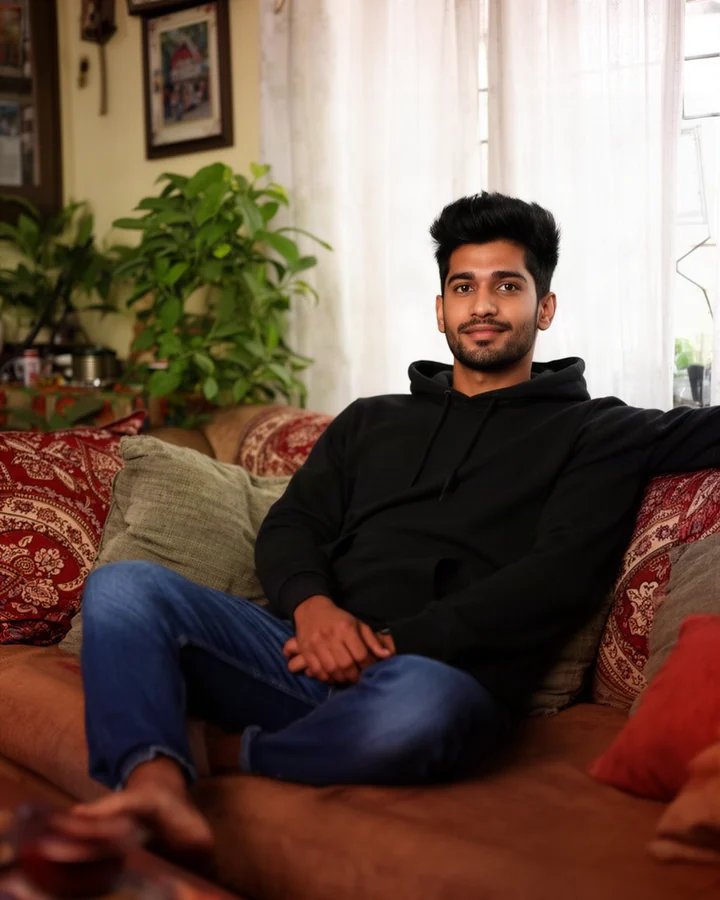
AI-generated example input: an adult sample person's lifestyle photo.
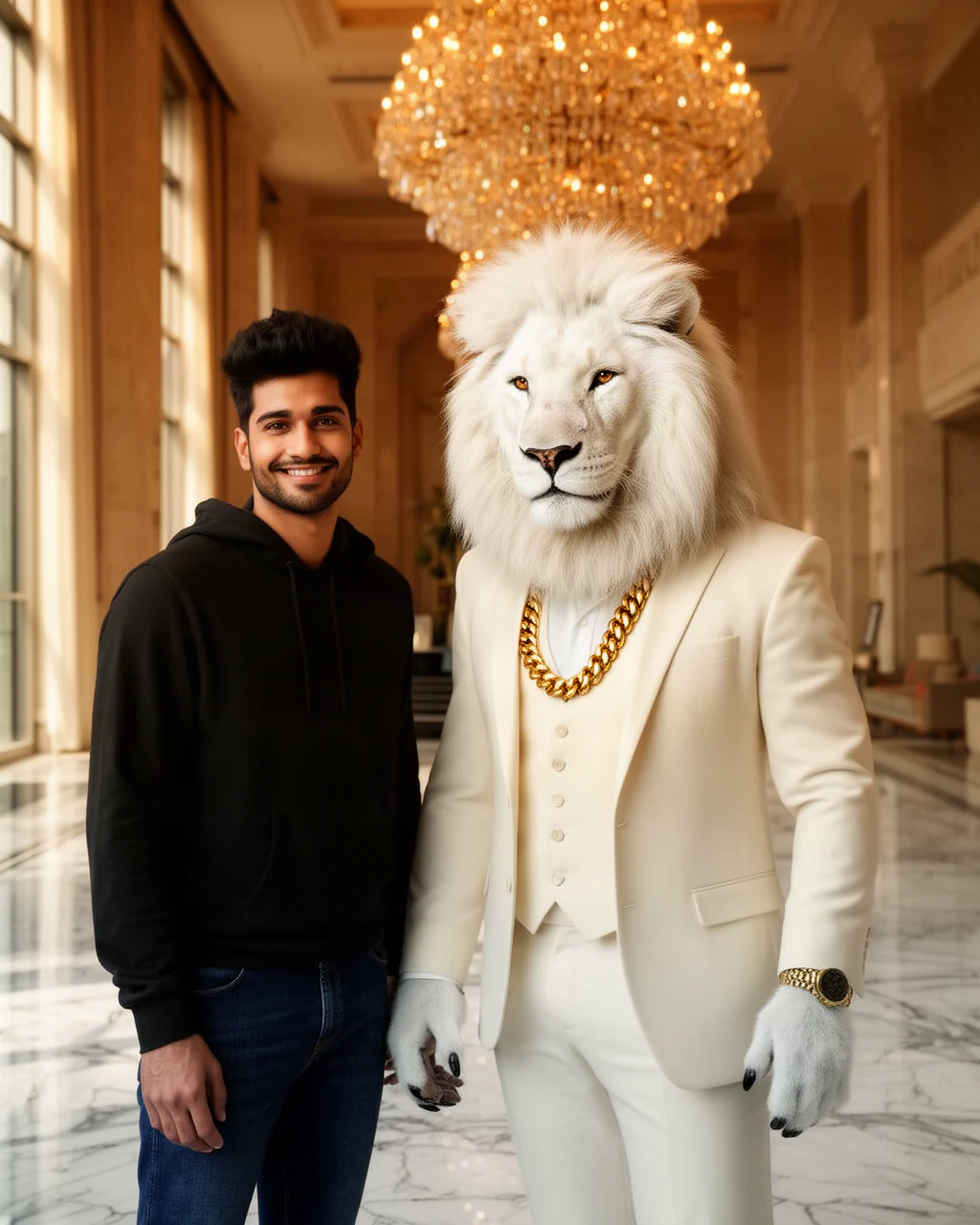
AI-generated result, The grand arrival: the same sample person beside the fictional Sheru Bhai. Your result may differ.
Step 2: upload and choose among the eight scenes
Open the photo generator, confirm consent and upload your selfie. Then choose the story you want the picture to suggest. The prepared scenes handle the setting; there is no need to paste a separate Sheru prompt.
The grand arrival
Stand beside Sheru Bhai in a grand marble hotel lobby, with warm crystal chandeliers and soft light from full-height windows. Choose this for an imagined arrival with both subjects visible, rather than a close-up character transformation.
Supercar circle
You and Sheru Bhai lean beside an unbranded pearl-white supercar outside a palm-lined modern mansion. Late-afternoon golden light sets the mood. This is a fictional luxury scene, not evidence that you own the car or visited the location.
Deal sealed
Share a handshake across a walnut executive desk, with a city skyline beyond the glass. The scene aims for friendly, confident expressions. Review the hands and contact between the two subjects, since those details can be imperfect in AI images.
Sign the big deal
Sign a fictional blank contract while Sheru Bhai stands beside you in an elegant boardroom. A gold pen and celebratory expressions support the imagined business moment. Treat it as entertainment, not a record of a real agreement.
Highest bidder
Sit with Sheru Bhai in a luxurious fictional auction hall, with a plain bidding paddle, velvet chairs and warm spotlights. This setting gives the picture an event-like atmosphere without representing an actual purchase or auction result.
Baraat royalty
Celebrate at a joyful Indian wedding baraat with ivory and gold clothing, marigold garlands, warm lantern light, fictional prop banknotes and gold confetti. Its default frame is 9:16, giving the festive setting a tall composition.
Lion boss mode
Transform into a supernatural white lion boss on a luxurious terrace. This is a single-subject transformation, not a photo of you standing next to Sheru. The recipe uses your pose, eye direction and distinctive expression as identity cues.
Lion king avatar
Create a centered, head-and-shoulders white-lion avatar with a full mane, ivory suit collar and gold chain. The warm background and square default frame make this a character-focused option to consider for a profile picture.
Step 3: select the frame before generating
The available frames are 4:5, 1:1 and 9:16. Most scenes default to 4:5; Baraat royalty defaults to 9:16, and Lion king avatar to 1:1. You can select another available frame before starting.
Think about the destination. A square frame suits a profile crop, while a tall frame leaves more vertical room for a Status post. Check the final crop inside your sharing app: its interface may cover or trim parts of the picture. Frame selection does not guarantee that every object will appear exactly where you expect.
Step 4: sign in, check your pack and generate
Sign in with a verified email to keep the upload associated with your account. Photo generation is paid, with no free preview or subscription. The photo packs are Starter at $1.99 for 4 photos, Popular at $3.99 for 12 and Party at $6.99 for 30. Unused photos never expire; check the pack display before purchasing.
One photo is reserved when generation starts. A successful image uses it; a failed or timed-out generation automatically returns it. Follow the displayed status rather than assuming that a delayed result has failed. The time needed can vary.
Common problems and what to check
The upload is rejected. Check the file format and size first. An unsupported file is not fixed by changing its filename extension; export a supported image instead.
The face does not look right. Try a sharper, evenly lit source without obstructions or strong filters. AI can still change facial details, clothing or skin appearance, even with a suitable input.
You expected two people but got a lion portrait. Check the scene selection. Lion boss mode and Lion king avatar intentionally transform the subject; the other six scenes place the person with Sheru Bhai.
Hands, props or the background look strange. Inspect these details before sharing. A completed image can contain visual mistakes; that is different from a failed generation status.
Generation cannot start. Check that the upload finished, consent is confirmed, your email is verified and your account has a photo allowance.
Download, review and share honestly
Download the full-resolution PNG, inspect the face and crop, and share the file rather than a private download link. On supported devices, use the available WhatsApp sharing option; otherwise download first and attach it yourself. Add an AI-generated caption so the fictional context stays clear.
Photos are generated by FLUX.2 [dev] from Black Forest Labs through fal.ai (fal-ai/flux-2/edit). AI-generated entertainment. Sheru Bhai is an original fictional, supernatural character, not a real person. Results may vary; never present these images as real events.
Ready to choose your scene? Upload your selfie in the photo generator.
Photo or video: which Sheru Bhai tool fits?
Choose the photo tool when you want one still image. The video tool turns one selfie into an action clip with motion and audio, and it uses a separate clip allowance. Compare the four Sheru Bhai video actions before deciding, or make an AI Sheru Bhai photo now.
Related Sheru guide
Want motion instead of a still? Read how to make a Sheru Bhai video from your selfie. It explains the input, four actions, about 6-second vertical output, account access and sharing limits. You can also open video generation to check access.
Browse the Sheru Bhai photo gallery to save and share existing AI-generated examples before choosing your own scene.