
Google Flow Sheru Bhai Prompt: Two Vertical Video Sequences
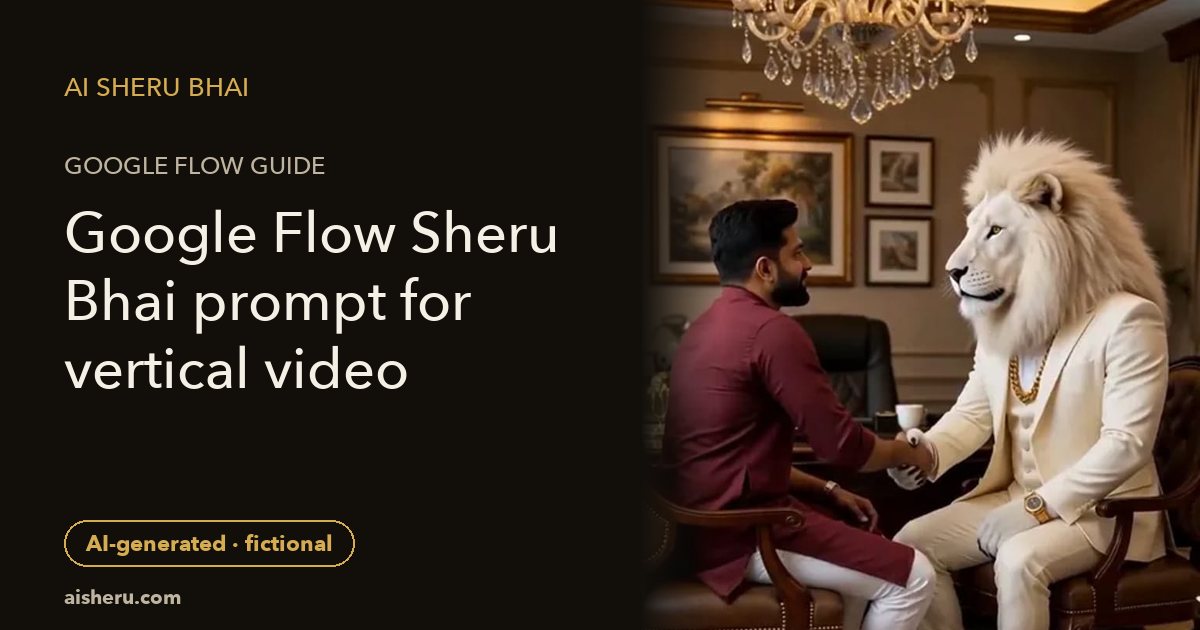
To make a Sheru Bhai AI video in Google Flow or Gemini, plan a 9:16 vertical frame, use one simple action per shot, then join two sequences in an editor. The public prompts below describe two ten-second sequences. Ten seconds is an editing target, not a guaranteed generation option: use the durations, extension and reference-image controls your account actually offers.
Prefer uploading a selfie and choosing an action instead of writing prompts? Open the paid Sheru video tool. It makes a separate roughly six-second preset clip using MiniMax H3 through YIR, not Google Flow or Gemini. It does not use these public tutorial prompts.
Before you upload to Flow or Gemini
This is an unofficial independent tutorial, not a Google partnership or product guarantee. Sheru Bhai is a fictional character; the white-lion design here is original fantasy artwork. Model availability, regional access, subscriptions and duration controls can change. Check your app’s current video options and terms before paying or uploading. We do not promise free access, a named model, exact speech or identical results.
Use a clear photo of yourself as an adult or an adult who has authorized this edit. Never upload children’s photos. Check the third-party service’s image processing, retention and sharing controls. Our site’s privacy policy does not govern an image you upload to another service. If reference images are unavailable, write a generic adult character instead of expecting the model to preserve your selfie.
Step 1: Set up a vertical scene
Select 9:16 if your chosen video mode supports it. Keep the human and lion near the center with room above their heads; phone apps may cover the bottom of the frame. Choose one location, outfit and lighting setup for both sequences. Save those details in a note so you do not accidentally change the character between shots.
Use the same authorized reference image in both requests where supported. A reference helps but does not guarantee a stable face, mane or outfit. Generate and inspect the first sequence before spending another request on the second. If the available mode cannot produce vertical video, choose another supported mode or plan a crop that keeps both faces visible; do not assume a text instruction overrides the aspect-ratio control.
Step 2: Public prompt A — entrance, ten-second editing target
Plan a vertical 9:16 fictional AI video sequence with a ten-second editing target, using the supported duration available in this tool. An authorized adult from my reference photo walks into a warmly lit courtyard beside Sheru Bhai, an original fictional white anthropomorphic lion with a white mane, ivory suit and gold chain. Use one slow forward tracking shot at eye level. Both characters pause and smile toward the camera. Keep their faces unobstructed, with natural walking and no sudden costume changes. Use gentle ambient courtyard sound, no copied music, no dialogue and no on-screen text. Clearly imaginary entertainment, not a real meeting.
Ask for an entrance, not a whole story. Review feet, hands and the transition from walking to standing. If faces drift, simplify the movement or shorten the shot rather than adding several new actions. Keep only a version you are comfortable showing.
Step 3: Public prompt B — greeting, ten-second editing target
Create the second vertical 9:16 sequence for the same fictional AI scene, with a ten-second editing target using the duration this tool supports. Keep the adult reference, white lion, ivory suit, gold chain, courtyard and warm light consistent with sequence A. Begin with both characters already standing. They exchange a brief friendly greeting with a small nod, then look toward the camera. Use a mostly steady medium shot; no new location, objects, dialogue or text. Keep hands relaxed and visible. Gentle ambient sound only. This is AI-generated fantasy, not proof of a real relationship or endorsement.
These prompts were written for this public guide. They are not copies of the private recipes used by the site’s generators. If your app supports using a previous frame as a reference, check its controls and use an appropriate authorized frame; otherwise compare both results manually for continuity.
Step 4: Join the two sequences
Import both clips into an editor and set the project canvas to 9:16. Arrange entrance first, greeting second. Trim each to a clean start and finish. If the generator returns less than ten seconds, use a supported extension or revise the edit; do not claim you received a ten-second output when you did not. Avoid stretching a short clip until the movement looks unnatural. A shorter clean edit is better than a broken twenty-second one.
Cut at a pause and compare face size, lighting and outfit across the join. Lower or replace mismatched ambient audio with sound you have permission to use. Add captions in the editor rather than asking the model to render words. For brief Roman Hindi lines and English meanings, see the Sheru Bhai dialogue guide. Preview once on a phone before exporting.
Add a visible “AI-generated fictional scene” disclosure and do not suggest a real endorsement or event. You are responsible for the final editor export and any third-party watermark or attribution requirements.
Prompt workflow or selfie preset tool?
Flow or Gemini gives you the controls available in that app, with manual review and editing. Our selfie video generator instead offers Boss Entry, Money Rain, Deal Done and Sheru Transform as prepared single-shot actions, a roughly six-second vertical MP4 and separate paid clip allowances. It is not a custom-script, ten-second or two-scene generator. Read the selfie video walkthrough before buying a pack.
For a still composition first, use the Sheru Bhai ke sath photo guide. For alternative public still-image prompts, see eight photo and four video prompt starting points.
Frequently asked questions
Can Google Flow or Gemini make an exact ten-second clip?
Not necessarily. Model, account and region determine available controls and durations. The two ten-second sequences here are editing targets, not a promise that a generation control offers ten seconds. Extend or edit only where supported.
Is AI Sheru Bhai powered by Google Flow or Gemini?
No. This unofficial tutorial is separate from the site’s paid preset tool. Our video tool uses MiniMax H3 through YIR and makes roughly six-second vertical clips from a selfie; it does not run these public prompts.
Can I upload someone else’s selfie?
Only use your own adult photo or a consenting adult’s photo. Do not upload children’s photos. Check the third-party tool’s privacy controls before uploading, and identify the finished scene as AI-generated fictional entertainment.